

|
Does your church or organization need an on-screen countdown clock? Are you currently paying for video files with built-in countdown timers? Are you frustrated by the lack of flexibility and the high price of these files?
If this describes your situation, TimeToStart will be perfect for you. TimeToStart does just one thing: display a countdown clock on your screen. Once you select a time and optional caption, the clock appears, counts down, and then disappears. That's it! |
 pick any ending time or number of minutes to count down
set the font style, text color, and shadow color.
simply drag it into whatever screen position you want
add a short customized message (like "Starting in..." or "Get Ready!")
set an automatic drift around the screen, at different speeds
select a translucent amount for a fancy see-through appearance
pick any ending time or number of minutes to count down
set the font style, text color, and shadow color.
simply drag it into whatever screen position you want
add a short customized message (like "Starting in..." or "Get Ready!")
set an automatic drift around the screen, at different speeds
select a translucent amount for a fancy see-through appearance
Since the clock appears without any background (a transparent window), you can place it over any background image or video you want. There's no need to buy any more videos with clocks, or spend hours creating your own. Simply show any content you already own, launch the clock, and you're done!
You can even change the time remaining, caption, font, colors and more - at any time, without first closing the clock. Talk about flexibility!
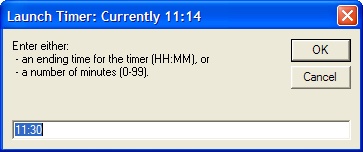 |
Time Selection DialogWhen you first launch TimeToStart, you will be asked for the ending time. You can either specify the time remaining in minutes, or an actual clock time.TimeToStart is intelligent, too: it will automatically suggest times to the next reasonable 15-minute increment. Most of the time, you can just click OK. |
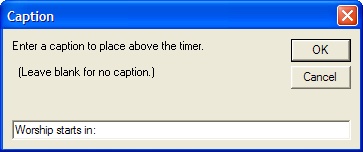 |
Caption DialogAfter pick the ending time, you will be asked for an optional caption. You can leave it blank, or enter any text you wish to display. |
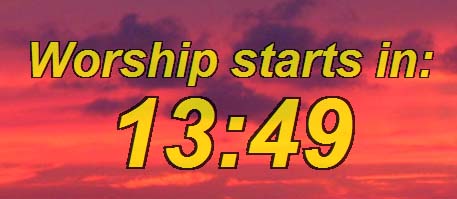 |
Basic TimerAfter you've provided the basic information for this session, the timer will appear.The software remembers previous display settings: it will appear in the same screen location as it was previously located, using your selected font and colors and transparency settings. All fonts are outlined using the selected shadow color, for easy visibility over any background. |
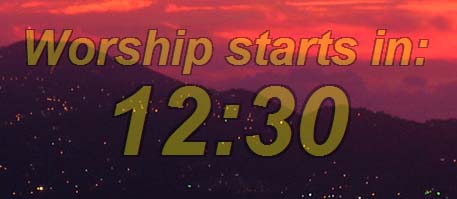 |
TransparencyTimeToStart supports transparency effects. When you use it over a background image, you can decide just how transparent the clock will appear. (This feature works best over static images.) |
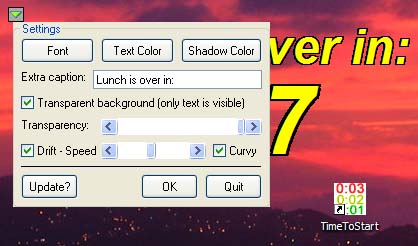 |
Settings DialogWhen you move the mouse over the digits, a small control box will appear. Click it, and the settings dialog will pop up, where you can adjust font, colors, and more.Click the control box again, or click OK, and the settings dialog will be hidden. The control box even hides itself after a few seconds. |
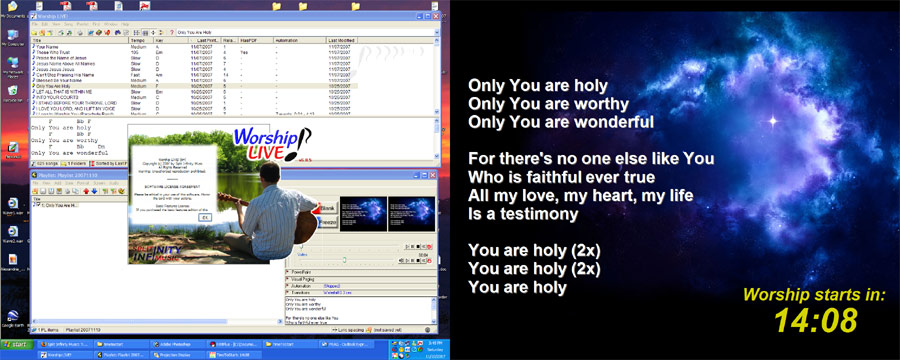 |
Dual Monitor SupportTimeToStart has true multi-monitor support. It will remember its position anywhere on the Windows extended desktop. It's perfect for use with digital projection systems, in large venues. It works with your existing software and hardware, and simply adds the countdown clock to whatever you're already doing. No fuss, no problem - just the timer function you need.(If you're looking for software to handle all your church worship planning and projection needs, consider our Worship LIVE! software.) |
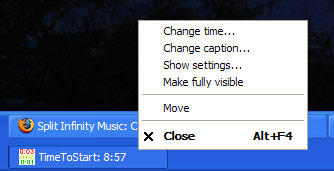 |
Other OptionsWhen you right-click the Windows Taskbar icon for TimeToStart, you will find a few convenient options in the context menu. This makes it easy to adjust TimeToStart's settings on-the-fly - without your audience seeing you work behind the scenes.The taskbar icon also shows the time remaining at all times - so you don't need to see the projection screen to know what's going on. |
Download and Installation Instructions
Download the installer (about 3Mb)
PLEASE NOTE:
TimeToStart has been retired from active sale and no longer being actively maintained, so YOU GET IT FOR FREE! We recognize it's still valuable to many people, and the unlock is now free, BUT support is NOT FREE. Support is billed at the following rate: $20/half hour, with $20 minimum and $50 maximum per incident, paid via PayPal.Self-Support Options
Read the help file online.
You can find answers and tech support in our Knowledge Base.
You can submit a bug or trouble report via our online bug report form.
If all else fails, you can call or email us.
System Requirements
This software was developed for Windows XP and newer. If your system can run any modern version of Microsoft Windows, it can run this program. However, you will need to read some articles in the Knowledge Base about installing older software. Basically, you need to run the installer as administrator, and you may need to set compatibility mode for Windows XP.